PV Winzone Verification Failed: How to Fix ID and Payment Upload Errors
Why PV Winzone Rejects Your Documents
When PV Winzone asks you to verify your identity, the platform checks that your account matches a real person and that your payment method belongs to you. If the system or compliance team flags a problem, your withdrawal stays locked until you fix it.
Blurry or cropped photos are the most common reason. Players often snap a quick picture in dim light or crop out the corners of their ID, leaving key details unreadable. PV Winzone needs to see every edge of the card and every letter clearly.
Expired government IDs get rejected immediately. Even if the photo still looks like you, an expired card no longer proves current identity under Philippine KYC rules.
Name mismatches stop approvals cold. If your PV Winzone account says "Juan Dela Cruz" but your GCash screenshot shows "J. Cruz," the system assumes fraud risk and blocks the cashout. Every name field—account, ID, and payment proof—must match exactly.
Incorrect file formats or oversized uploads can fail silently. Some players try to upload PDFs or files larger than the allowed limit, and the platform simply rejects the submission without a clear error message.
Partial documents are another issue. A photo of only the front of your ID, or a GCash screenshot that cuts off your registered name, will not pass. PV Winzone typically requires both sides of any two-sided ID and a full screenshot showing your name and recent transaction.
Understanding these common problems helps you avoid repeated rejections and speeds up your access to withdrawals.
Accepted Philippine IDs and Document Formats
PV Winzone follows standard KYC rules in the Philippines, so most government-issued IDs with your photo and full name will work.
Valid ID types include:
- Philippine Passport – The gold standard; make sure it has not expired.
- Driver's License – Both card versions (old and new) are accepted; capture front and back.
- UMID (Unified Multi-Purpose ID) – SSS, GSIS, Pag-IBIG, and PhilHealth unified card.
- National ID (PhilSys) – The newest and increasingly common option.
- Voter's ID – Issued by COMELEC; photograph both sides.
- PRC ID (Professional Regulation Commission) – For licensed professionals.
- Postal ID – Still widely accepted if issued recently and not expired.
- SSS, GSIS, Pag-IBIG, or PhilHealth ID – Individual agency cards (not UMID) may work, but check expiry.
What PV Winzone will not accept:
- Barangay certificates or clearances (not photo IDs)
- Company or school IDs
- Expired IDs of any kind
- Screenshots or photocopies of IDs (you must photograph the physical card)
Payment proof requirements:
For GCash, Maya, or bank deposits, PV Winzone usually asks for a screenshot showing:
- Your full registered name as it appears on the e-wallet or bank app
- The transaction details (date, amount, reference number)
- The logo or header of GCash, Maya, or your bank to confirm the source
Do not crop the image tightly; include enough context so the reviewer can see it is a genuine app interface.
File format and size:
Upload JPG or PNG files. Each file should be under 5 MB. Avoid PDFs, HEIC (iPhone default), or overly compressed images that lose detail. If you are using an Android phone, check that your camera is set to save as JPG and that resolution is medium or high, not low.
Step-by-Step: Re-Submit Clear Photos
If PV Winzone rejected your documents, follow these steps to fix the issue and resubmit properly.
1. Check the rejection reason
Log in to your PV Winzone account and look for any notification or email explaining why verification failed. Common messages include "document unclear," "ID expired," or "name does not match." If no reason is given, assume the photo quality or name mismatch is the problem.
2. Prepare your ID
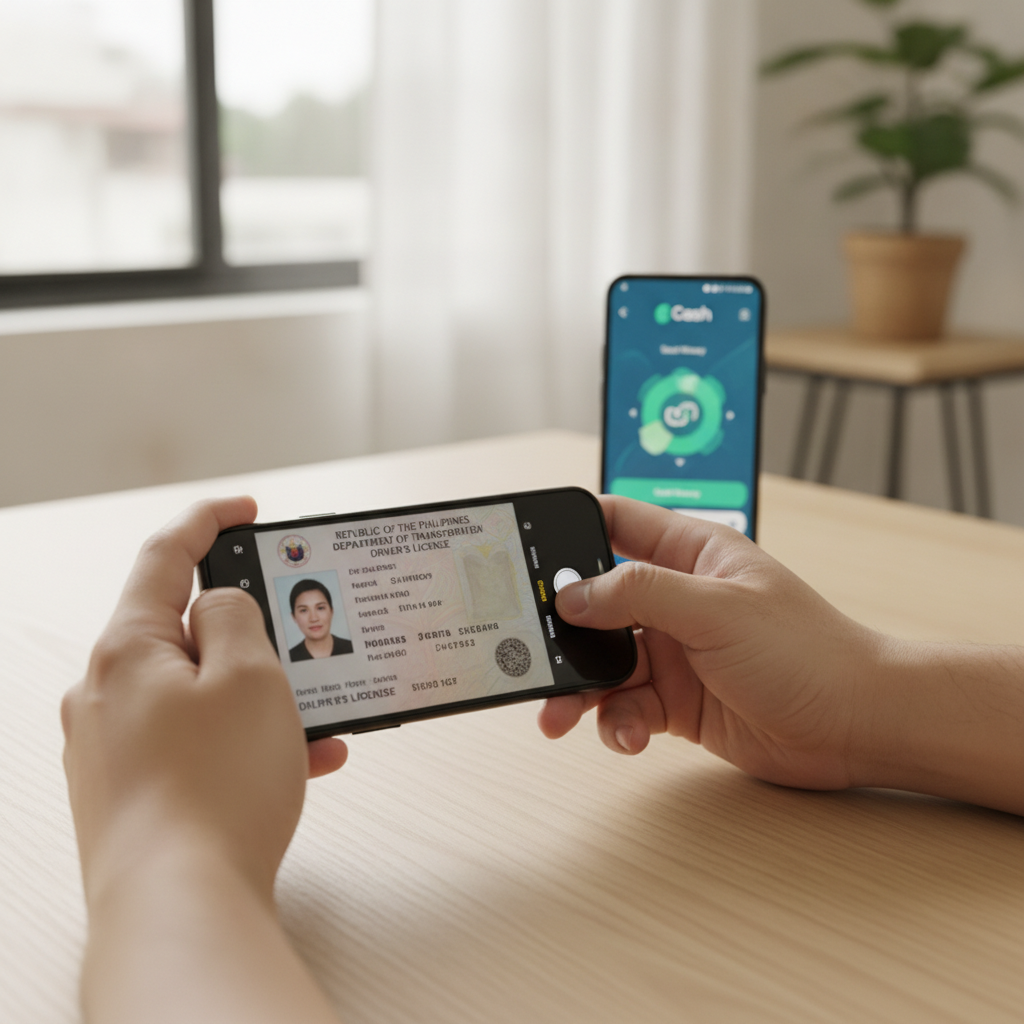
Find your valid, non-expired government ID. Lay it flat on a dark, solid-color surface—avoid patterned tables or bedsheets that create visual noise. If your ID has printing on both sides, you will photograph front and back separately.
3. Take new photos in good lighting
Use your phone's rear camera, not the front-facing selfie camera; rear cameras have higher resolution. Turn on all the lights in the room or move near a window during the day. Hold the phone directly above the ID, parallel to the card, so there is no perspective distortion.
Tap the screen to focus, then capture. Do not use flash if it creates glare on the laminated surface. Review the photo at full zoom to confirm every letter and number is sharp. If it looks even slightly blurry, delete and try again.
4. Capture your payment proof
Open GCash, Maya, or your bank app and navigate to your transaction history. Find the deposit you made to PV Winzone—look for the exact amount and date that matches your account deposit record.
Take a screenshot that shows:
- Your full registered name at the top of the app screen
- The transaction row with amount, date, and reference or transaction ID
- The GCash, Maya, or bank logo
Do not edit or annotate the screenshot. Submit the raw file straight from your phone's screenshot folder.
5. Check file names and formats
Before uploading, confirm each file is JPG or PNG and under 5 MB. Rename files to something clear like "passport-front.jpg" and "gcash-deposit-proof.png" so you do not mix them up if you need to re-upload later.
6. Log in and navigate to verification
On the PV Winzone app or mobile site, go to your account settings or profile page. Look for a "Verify Account," "KYC," or "Upload Documents" link. Some players find it under the "Cashout" or "Withdrawal" menu if the platform blocks withdrawals until verification is complete.
7. Upload and submit
Select your ID front photo, then ID back photo (if required). Upload your payment proof screenshot. Double-check that each image preview looks clear and complete before hitting "Submit." You should see a confirmation message or email acknowledging receipt.
How Long Verification Review Takes and When Withdrawals Unlock
PV Winzone typically reviews documents within 24 to 72 hours on business days. If you submit on a weekend or Philippine public holiday, expect the review to start the next working day.
Factors that affect processing time:
- Volume of requests – Peak times (end of month, after big promotions) can slow the queue.
- Clarity of your documents – Perfect uploads move faster; marginal cases may require manual review or a follow-up request.
- Name or detail mismatches – If the team spots a small inconsistency, they may email you for clarification, adding another day or two.
How you will know it is approved:
You will receive an email or SMS notification, and your account status will update to "Verified" or "KYC Complete." Once verified, your pending PV Winzone withdrawal will either process automatically or require you to re-request it.
If verification is rejected again:
Read the new rejection message carefully. The most common repeat issue is still photo quality. Use a different phone camera if possible, or ask a friend to take the pictures for you in bright daylight. Make sure every corner of the ID is visible and every character is sharp.
Contacting support:
If you have re-submitted twice with no success and the rejection reason is unclear, reach out to PV Winzone customer support through the in-app chat or email. Provide your account username (not your password) and ask for specific guidance on what is wrong with your upload. Support can sometimes manually review borderline cases or whitelist your account if the issue is a technical glitch.
Withdrawal Unlocks and Next Steps
Once PV Winzone approves your documents, your account is cleared for cashouts. Depending on your chosen method—GCash, Maya, InstaPay, or PESONet—withdrawal processing times vary:
- GCash and Maya: Usually 1 to 24 hours after approval.
- InstaPay: Same-day or next business day.
- PESONet: 1 to 3 business days.
If you had a withdrawal pending during verification, it may auto-release after approval, or you may need to cancel and re-request it. Check your transaction history and submit a fresh cashout request if necessary.
Keep your verified status active by using the same ID and payment accounts. Switching to a new GCash number or Maya account later may trigger another round of verification, so plan ahead if you intend to change e-wallets.
21+ Only and Play Responsibly
PV Winzone is for players 21 years and older only. Verifying your ID helps the platform confirm your age and comply with Philippine regulations.
Gambling should stay fun and within your budget. Set deposit limits through your GCash or Maya app if PV Winzone does not offer built-in controls. Never chase losses, and take breaks if betting stops being entertainment. If you or someone you know needs support, reach out to local responsible-gambling resources or talk to a trusted friend or counselor.
Verification exists to protect both you and the platform. Completing it correctly unlocks your winnings and keeps your account in good standing for future cashouts.